
Build Better Shopify Integrations with the Developer API

What the Shopify Developer API Lets You Build
The Shopify Developer API lets apps work with store data through code. With approved access, an app can read or update products, orders, customers, and inventory. This gives teams a way to link Shopify with other business tools or add custom features.
For example, an inventory system can send stock changes to a Shopify store. An order app can pass new purchases to a warehouse for packing. These links reduce manual entry and help keep records in sync.
Access is not open by default. Each app asks for permissions called scopes, and the merchant approves them. A focused app requests only the access its features need. That keeps the app easier to review and safer to use.
- Connect store data with accounting, shipping, or inventory tools.
- Automate repeat tasks, such as sending orders for fulfillment.
- Build a custom buying experience or a private store tool.
Start with a clear task. Then choose the smallest set of data and actions needed to do it well.

Core Features of the Shopify API
The API can return store data or make changes to it. A request might fetch product details, update an order, or change stock levels. Apps can also use webhooks, which send a notice when chosen events happen.
Webhooks help an app react without checking for changes every few minutes. For example, a new-order notice can start a packing task. But notices can arrive more than once, or fail to arrive. Save each event ID and check the related record before repeating a task.
Plan for API rate limits before launch. Shopify sets limits on how often an app can make requests. GraphQL limits depend on query cost, while REST uses request rates. Check Shopify’s API rate limits documentation for the current rules.
If a request fails or slows down, pause before trying again. Add more wait time after each failed attempt. Cache data that rarely changes, then refresh it when a webhook arrives. This cuts needless requests and helps the app stay responsive during busy periods.
Record when each update succeeds. If a request fails, retry it in a way that avoids duplicate orders or stock changes. Small checks can prevent large data errors.
Choose the Right Shopify API
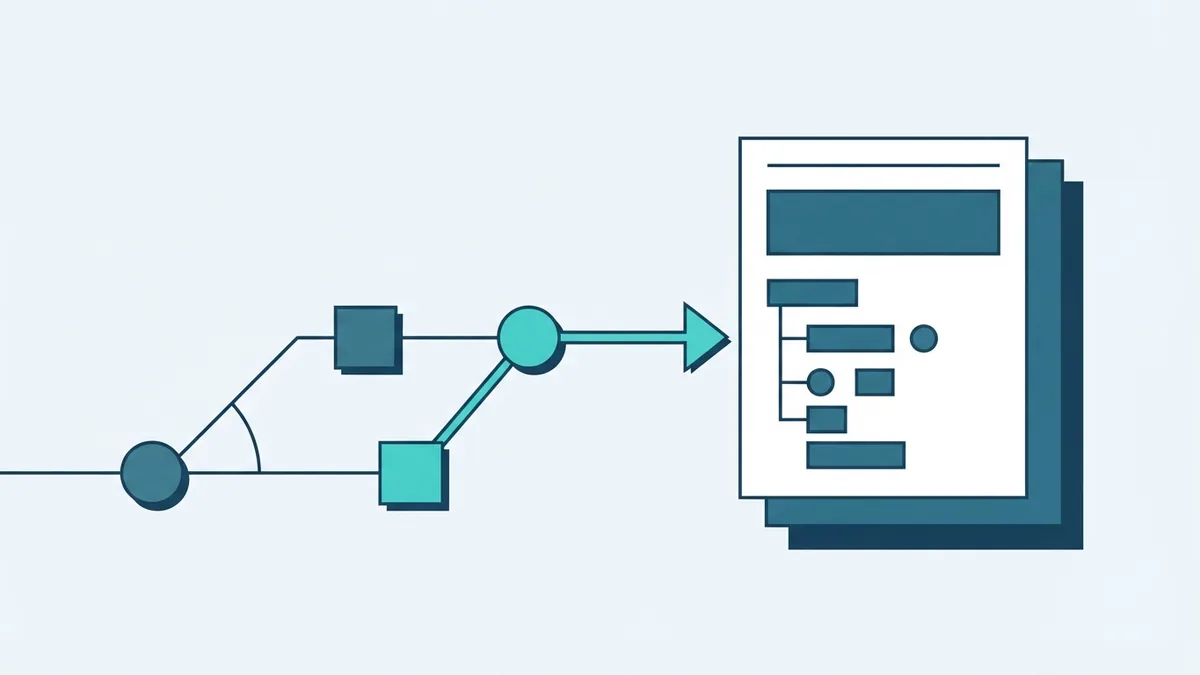
REST and GraphQL are two formats for the Admin API. REST uses set paths for tasks such as viewing a product or changing a record. GraphQL lets an app ask for chosen fields in one request. That can reduce extra data and avoid several calls.
Shopify marks the REST Admin API as legacy and recommends GraphQL for new public apps. REST may still suit an existing tool or a simple task. Check the Shopify API documentation before choosing. Supported features can change with API versions.
The Admin API handles backend store data. The Storefront API supports custom buying experiences, including a separate web front end. The Payment Apps API serves eligible developers who build approved payment features. It is not a general way to replace any payment provider.
| API | Common purpose |
|---|---|
| Admin API | Manage products, orders, customers, and stock with approved scopes. |
| Storefront API | Build a custom buying experience with storefront data. |
| Payment Apps API | Build supported payment features under Shopify’s rules. |
Match the API to the task. A backend sync usually needs the Admin API. A custom storefront calls for Storefront API access. Payment features must meet Shopify’s eligibility rules.
Get Started with Shopify API Integration
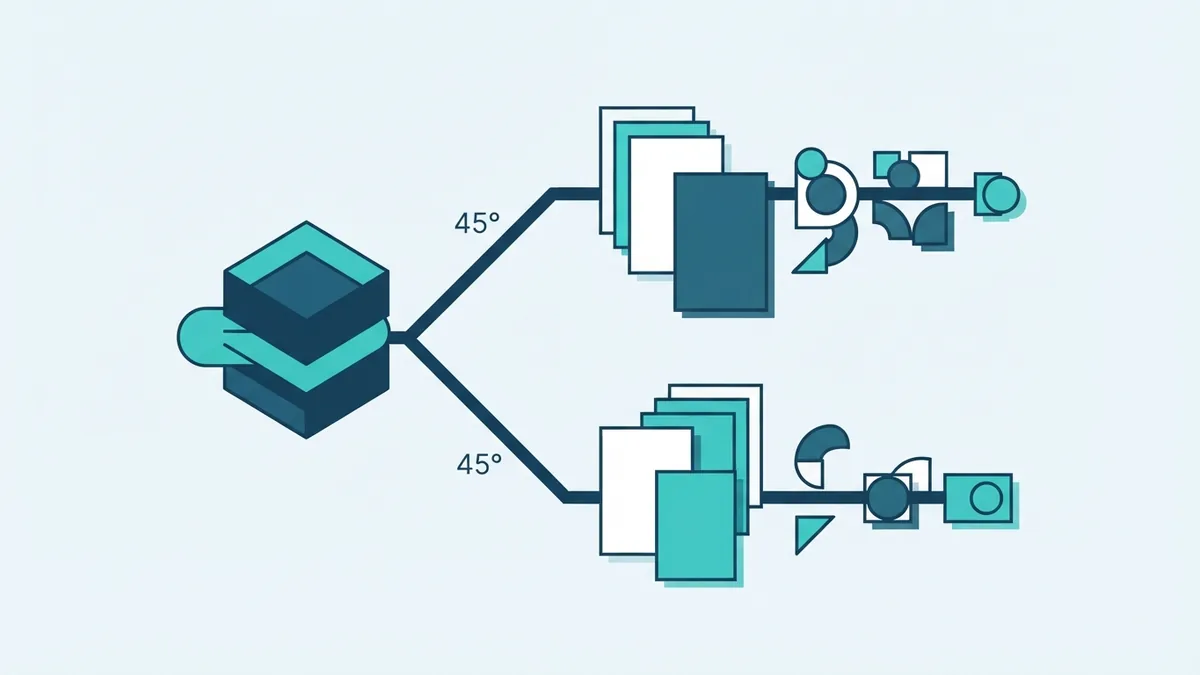
First, create a Shopify Partner account and set up an app in the Partner tools. Choose an app type and link it to a development store. This test store lets you try key tasks without changing a merchant’s live data.
Next, list what the app must do. Match each task to the smallest set of access scopes. An app that only reads products should not ask to edit orders. Narrow access lowers risk and makes the approval request easier to explain.
- Create the app: Set it up in Shopify Partner tools and link a test store.
- Pick access scopes: Match each scope to a feature the app needs.
- Set up sign-in: Use Shopify’s supported OAuth flow to get an access token.
- Test a request: Fetch a product or order, then check the fields returned.
- Test errors: Check denied access, missing data, expired sessions, and rate limits.
OAuth is a standard way to grant an app access to a merchant’s store. Keep tokens on your server, not in browser code or public logs. Follow Shopify’s app sign-in and access guidance when setting up this flow.
Test the app with sample products, orders, and stock changes. Include denied access and failed requests in your tests. A test store gives you room to find problems before launch.

Shopify API Best Practices and Common Uses
Good Shopify app development starts with a clear purpose and careful access choices. Ask for only the scopes that support the app’s main features. Store access tokens safely, keep secrets out of public code, and remove access when an app no longer needs it.
Use webhooks for events that need a quick response. Use scheduled checks when no suitable webhook exists. For either method, plan for delays and repeated events. Keep a record of completed work so a retry does not create a second shipment or stock change.
Several common tasks make useful first projects. An order app can send new purchases to a fulfillment service. An inventory link can sync stock from an external system. A custom app can also help staff manage a store-specific task.
- Order fulfillment: Send order details to a warehouse, then record progress.
- Inventory sync: Share stock changes between Shopify and another system.
- Custom store tools: Add features for staff or build a tailored buying flow.
Keep a small log of each request, its result, and any retry. Avoid saving private customer details unless the app needs them. Review logs and permissions as the app changes.
For troubleshooting, check the response code and error details first. A permission error often means the app lacks a needed scope. A slow response may point to rate limits or a large query. Check the affected record before sending a change again.
Common Questions About Shopify API Integration
Choose an API based on the work it must do, then test its key paths in a development store. The questions below cover common choices and setup issues.
For a new app, GraphQL is often the best starting point for Admin API work. REST can remain a sound fit for older apps or narrow needs. Review current API support before building around a feature.